October 2026
This release reworks how you prepare interviews. Interview plans become guidelines that you create on one page, refine with the AI Assistant and keep editing at any time. From a guideline you plan as many interviews as you need, each with its own page, link and passcode. Around that, the sidebar becomes a compact rail with quick access panels, every group gets its own group space, interviewees get an introduction and hear Wissy read the questions aloud, and Wissenstifter runs on newer AI models.
At a glance
- Guidelines replace the planning wizard: three guided steps, inline editing with automatic saving, and an AI Assistant whose suggestions you review in place.
- Interviews has its own page: plan several named interviews per guideline and manage each one's link, passcode and access on its own page.
- A new sidebar rail opens quick access panels on hover, and the top bar holds the page action, the notifications bell and Preferences.
- Each group has a group space: Guidelines, Interviews and Documents show only the content of the current group.
- Interviewees get a short introduction, Wissy reads every question aloud, and the passcode is entered as a 4-digit PIN.
- Tags now belong to knowledge documents instead of interview plans.
- Wissenstifter uses GPT-6 and current Gemini models, and guidelines are generated in the language you pick.
Navigation and layout
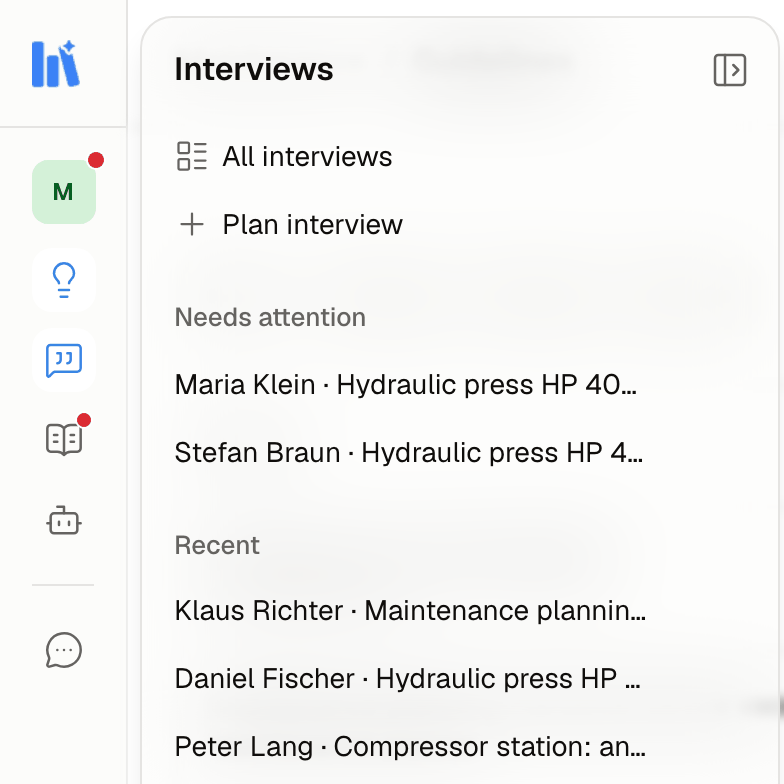
- Sidebar rail: the sidebar is a narrow rail of icons. Hover an icon to open its panel with shortcuts such as All interviews, Plan interview, Needs attention, Awaiting your approval and Recent (with Show more); click the icon to open the page. Click the logo or press ⌘B (Ctrl+B) to keep the full sidebar open. See Finding your way around.
- Renamed entries: Guidelines (was Interview plans), Interviews, Documents (was Knowledge documents) and Chats (was Chat). Agents shows Knowledge Bases and Skills, both Coming soon.
- Top bar: the action of the current page sits on the right (for example Create guideline, Plan interview or Copy link & passcode), next to the notifications bell and Preferences with Documentation, Theme (Light, Dark, System) and Language. A breadcrumb on every page starts with your current group.
- Notifications: the bell shows how many entries are open: join requests, invitations, documents awaiting your approval, and interviews that are blocked, expired or expire within 2 days. Each entry opens the right page. See Notifications.
- Account menu: at the bottom of the sidebar, with Groups, Documentation and Log out.
- Look: buttons are softly tinted and the same size everywhere, clickable table rows show a pointer, and messages appear as cards in the bottom right (at most three, each error only once, in your language).
- Phones: the breadcrumb shows only the group and the current page, and disabled buttons explain why when you tap them.
Guidelines
- Guidelines overview: each row shows the Title with the Role underneath, the Interviewee of every interview planned with it, and the Status. The quick filter Exit counts your guidelines (Process, Product and Project are Coming soon), and Search guidelines... finds a guideline by title, role or interviewee. See Guidelines.
- Two statuses: In Planning (the guideline is not created yet) and Ready (you can plan interviews with it and keep editing it).
- Guided steps: Create guideline opens one page with three steps: Details (Title, Role, Description), Documents (optional PDFs whose titles you can edit, or Skip, continue without documents) and Topics. The guideline is created in your current group. See Creating a guideline.
- Request box: in the Topics step you choose the Interview depth (Overview with 3 topics, Standard with 5, In depth with 7), the Guideline language (a searchable list of all languages, with your app language marked Suggested) and optional Topic wishes. After the guideline is generated, the request stays visible as a summary.
- Generate guideline in the top bar starts the generation. A bar at the bottom shows what Wissenstifter is doing and, when done, the number of topics with Open guideline.
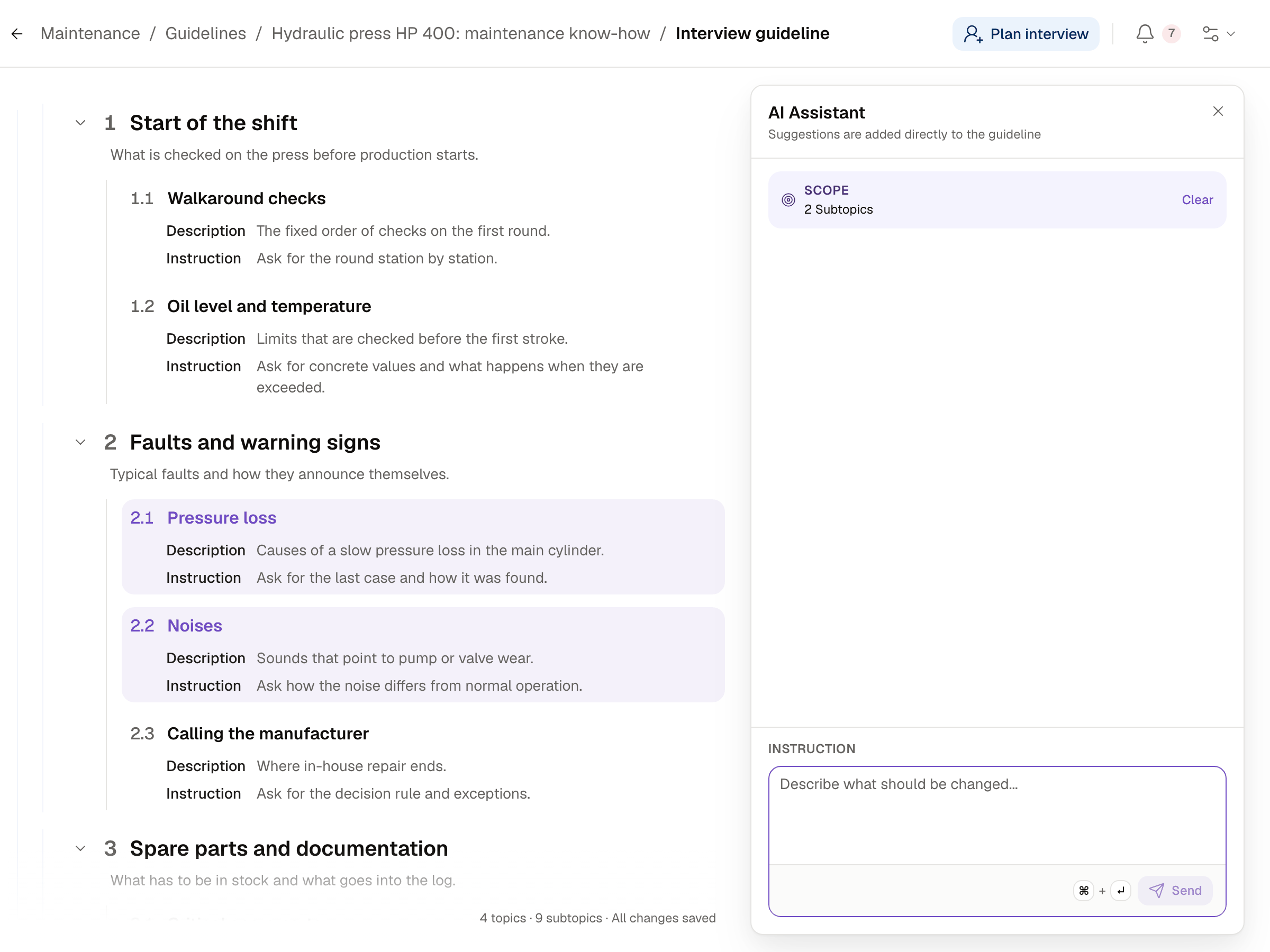
- Inline editing: click any text of a topic or subtopic to edit it. Topics have a description, subtopics a Description and an Instruction. The menu next to an item moves it up or down or deletes it, New topic adds one, and topics collapse. There is no save button: the line at the bottom shows All changes saved. See Editing the guideline.
- Always editable: a guideline is no longer published and locked. Each interview gets a copy of the guideline when it is planned, so later edits only apply to new interviews.
- AI Assistant scope: the assistant opens next to the guideline. Scope starts with the Entire Guideline; click topics or subtopics to narrow it, double-click to edit a text instead, Clear resets it. Type under Instruction and select Send. See The AI Assistant.
- Review in place: suggestions are written into the guideline and marked. Keep or discard each one, or all with Keep all and Discard (Enter keeps, Esc discards). Undo last change reverts the most recent change from the assistant.
- Removals until reviewed: a topic or subtopic the assistant wants to remove stays visible, struck through and marked Removed (or Removed with 2 subtopics). The checkmark keeps the removal, the x restores it.
- Try again: if a request fails, the assistant offers Try again.
- Plan interview in the header of a guideline plans an interview with it straight away.
Interviews
- Interviews page: lists every interview of your current group with the Interviewee and guideline, the Status and when it was Created. Quick filters All and Needs attention, and Search interviewees... finds an interview by interviewee or guideline. See Planning interviews.
- New statuses: besides Not started, In progress and Finished, an interview can be Blocked or Expired.
- Several interviews per guideline: Plan interview guides you through Guideline, Interviewee (the person's name) and Agent (the Default interview agent), then Create interview. The interviewee's name now belongs to the interview, not to the guideline.
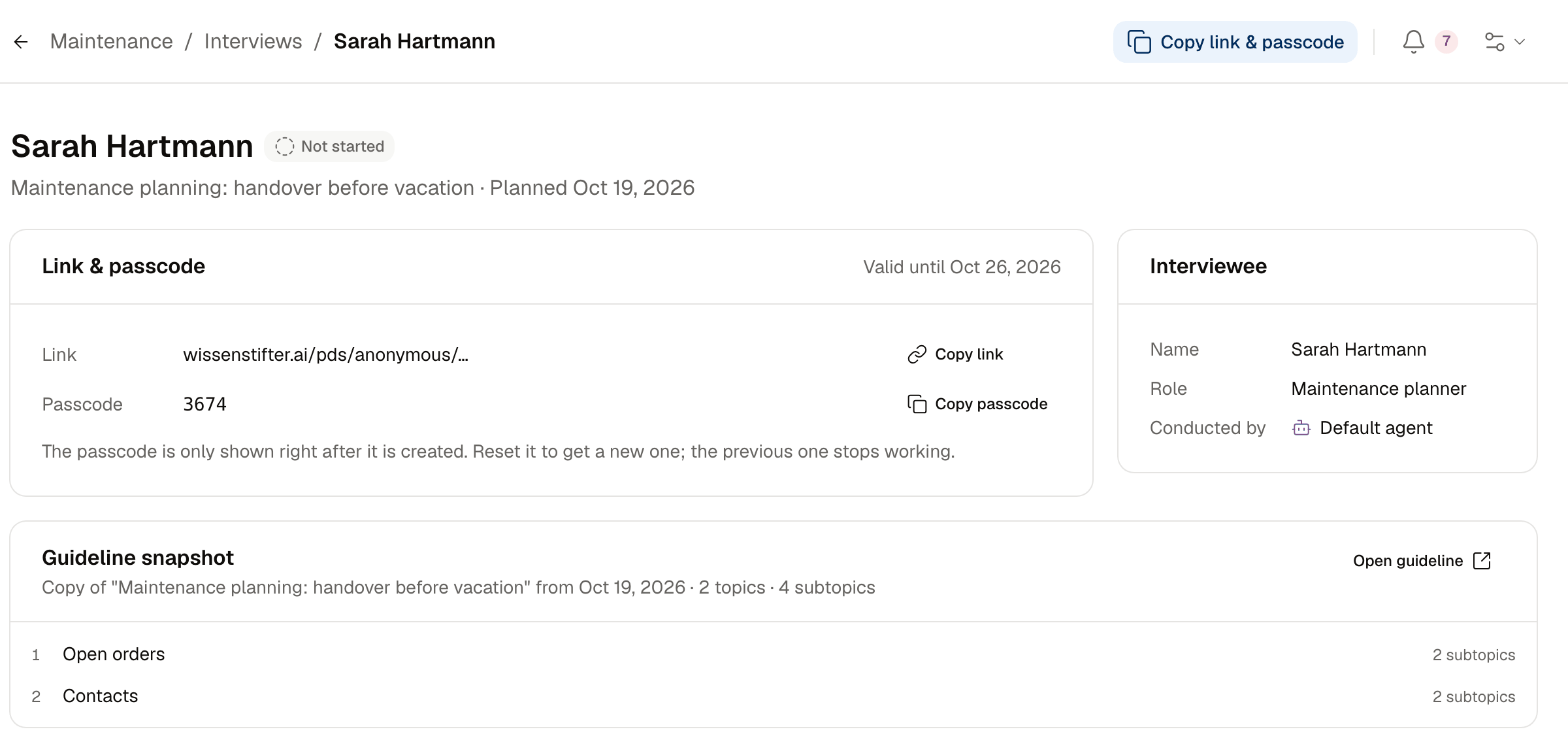
- Interview page: each interview has its own page with the cards Link & passcode (Copy link, Copy passcode, Valid until), Interviewee (name, role, Conducted by) and Guideline snapshot with Open guideline. Copy link & passcode in the top bar copies both at once. See Link and passcode.
- Passcode: the passcode is only shown right after it was created. New passcode creates a new one and invalidates the old one; click it again to copy it.
- Blocked and expired access: after 3 wrong passcodes the interview is blocked; Unlock with new passcode opens it again. Links are valid for 7 days; Renew access creates a new link and passcode. The answers so far are kept, and Copy message copies a ready text for the interviewee.
- Existing interviews keep their links and appear with their interviewee's name.
For interviewees
- Passcode as PIN: the interviewee types a 4-digit passcode, checked as soon as the last digit is entered. See Starting an interview.
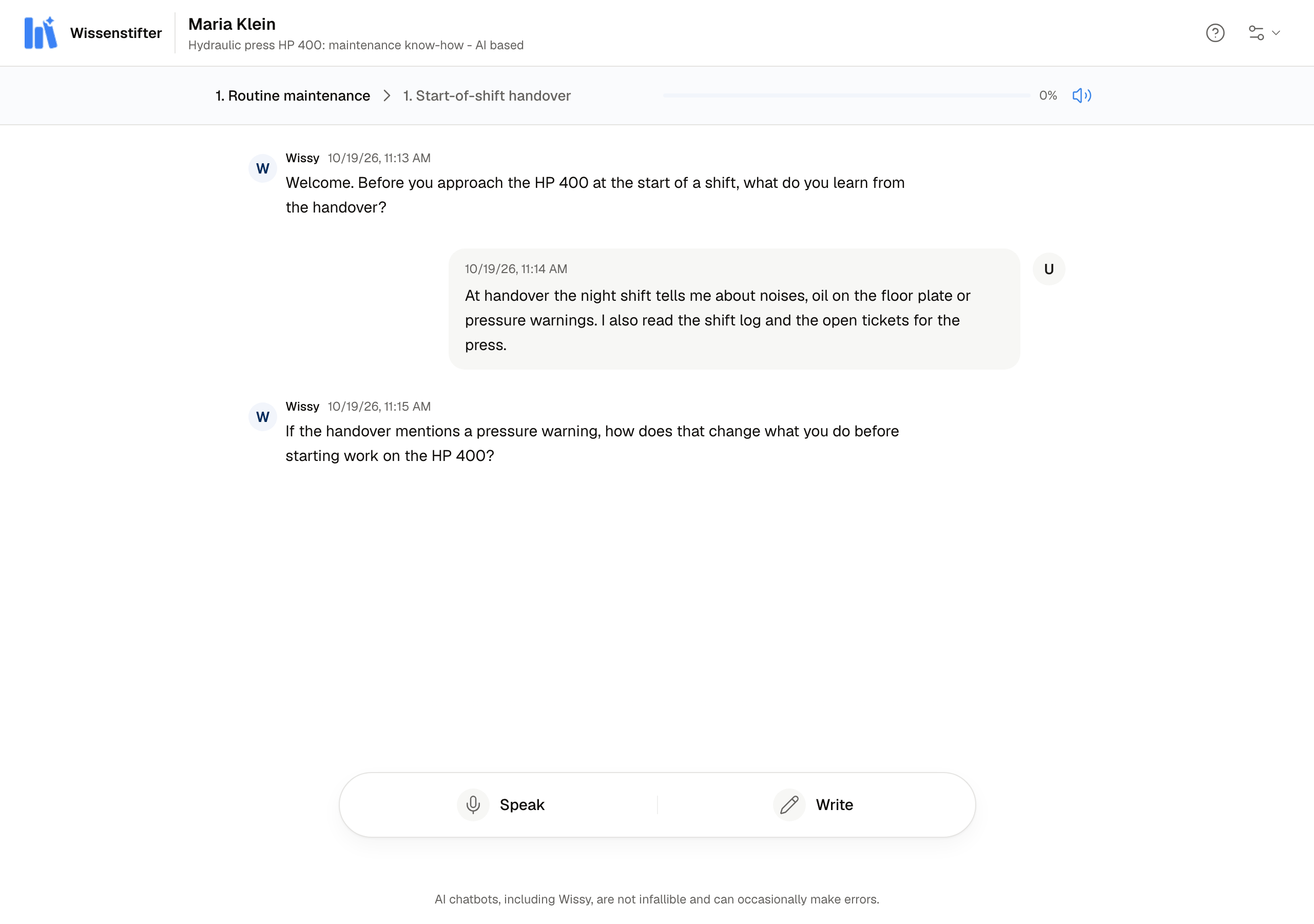
- Introduction: a short tour explains topics, reading aloud, speaking, writing and pausing. The question mark in the top bar (Replay the introduction) shows it again, and Preferences next to it opens Documentation, Theme and Language. See The introduction.
- Read aloud: Wissy reads the greeting and every question aloud, starting while the audio is still arriving. The speaker button (Read answers aloud) switches it on or off. If reading aloud fails several times in a row, it stays off for the rest of the interview.
- Writing answers: after Write, Enter sends and Shift+Enter starts a new line, and answers are no longer limited to 1000 characters. See The interview.
- Microphone: if the browser blocks the microphone, a card explains how to allow it, and recording starts by itself once allowed. A lost microphone keeps what was recorded so it can still be sent.
- Progress: the progress bar starts at 0% and reaches 100% after the goodbye.
Knowledge documents
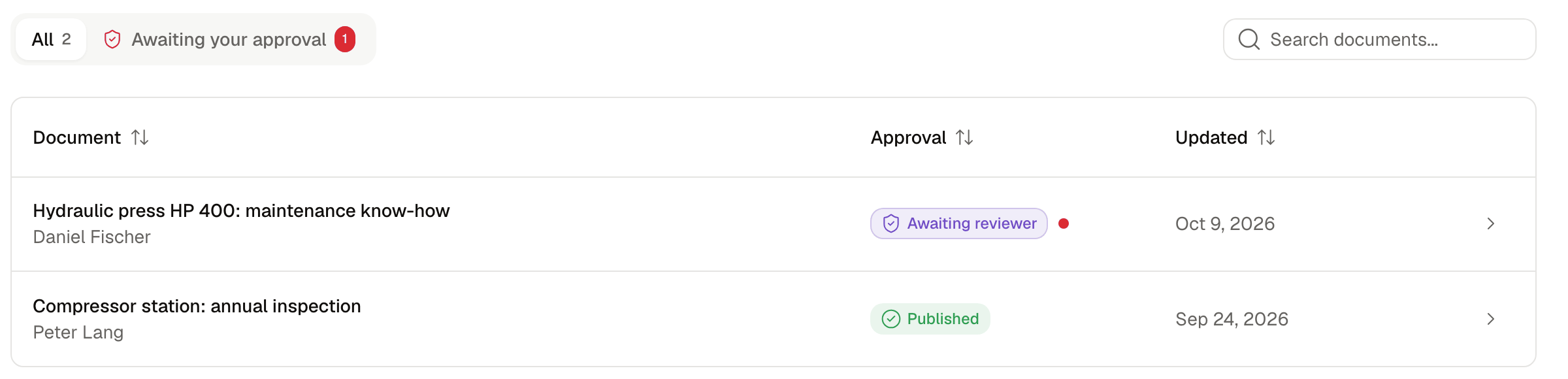
- Documents overview: shows the documents of your current group with the Document and interviewee, the Approval status and when it was Updated. Quick filters All and Awaiting your approval, and Search documents... finds a document by title or interviewee. See Knowledge documents.
- Tags on documents: planners pick Tags in the side panel of a document; choose several in a row, or type a new name to create a tag. Other members see them read-only, interviewees never. Tags of existing interview plans moved to the documents of their interviews. See Tags.
- Reading a document: numbered topics with Contents in the side panel, which follows what you read and jumps to a topic. Planners read the document; corrections come from the interviewee. See Reading a document.
- Approval: the bar above the text shows the status and, when it is your turn, Approve to publish right away or Send back for revision to return the document to the interviewee. Export to PDF or Word comes once it is published. See Approval.
- Way back: a finished interview opens its document with Open knowledge document, and a citation in the chat opens the document with Back to chat.
Chat
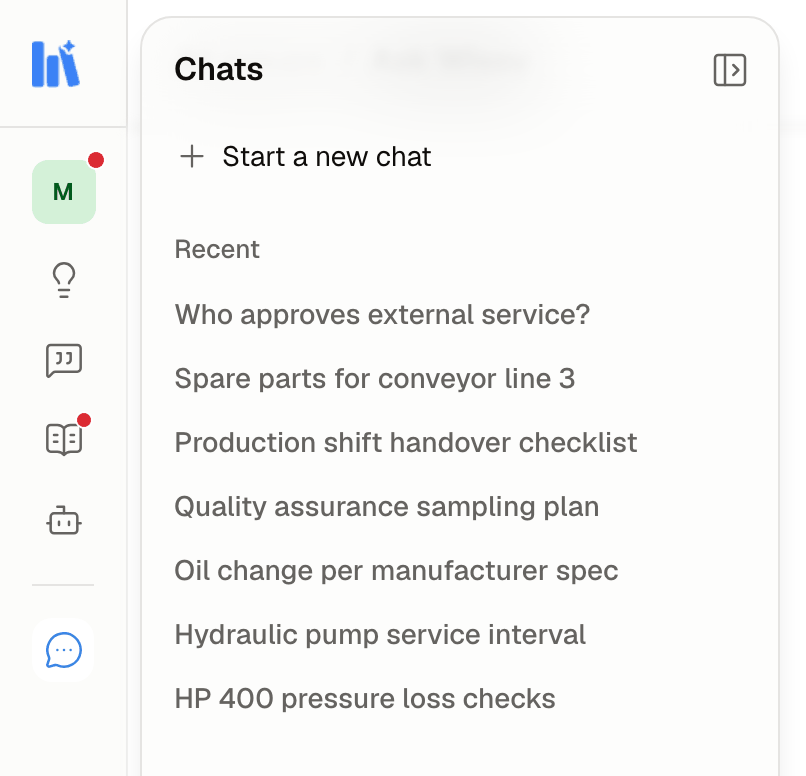
- Chats panel: the Chats icon below the line opens Start a new chat and Recent with all your chats, on every page. Rename chat appears on hover. See Managing your chats.
- New chats: a chat is only created when you send its first message.
- Filters stay: the interviews, topics and groups you narrowed a question to stay selected after sending. See Narrowing the knowledge.
- Display: replies appear quickly in word groups, long words wrap inside the bubble, the history fades out at the bottom, message times are correct, a pending reply stays in the chat it was sent from, and a failed send gives you your text back.
Groups and roles
- Group spaces: the first icon in the rail shows your current group. Its panel lists your groups with their pending approvals, Switch group (or Alt+1 to Alt+9) and Manage groups. Links to a group you don't belong to show your current group and offer Request access. Old bookmarks open in your current group. See Group spaces.
- Groups page: one table with the quick filters All, My groups and To join, Search groups, a Status column (your role, Invited, Requested or Not a member), the Current group and to approve counts. Request asks to join, Withdraw request takes it back, and Accept or Decline answers an invitation. See The groups page.
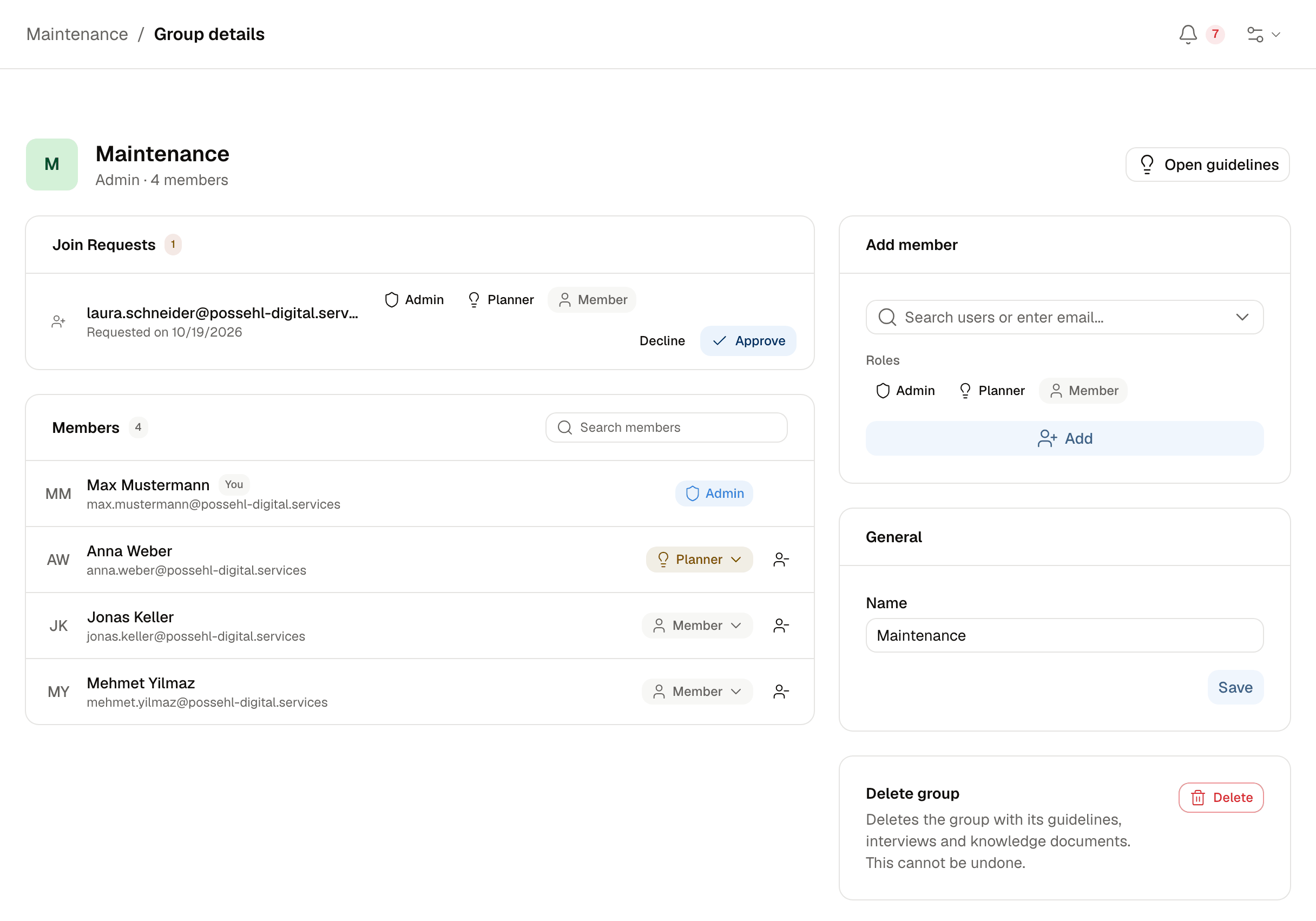
- Group details: a page with Join Requests (choose the role, then Approve or Decline), Members with Search members and pages, role changes from the role badge, Add member, General for renaming, and Delete group or Leave. See Group details.
- One role per member: Admin, Planner or Member, each including the rights of the one below. See Roles.
- Planner role: creating guidelines needs the planner or admin role in a group. Without it, a message explains how to get the role. If you are not in a group yet, the groups page says so and suggests creating one or requesting to join.
AI models and quality
- GPT-6: interviews, chat, guideline generation, the AI Assistant and document summaries run on GPT-6. Instead of a fixed randomness setting, each task uses a level of reasoning that fits it, which makes answers more consistent.
- Gemini 3.8: spoken answers in interviews and chat are transcribed with Gemini 3.8 Flash (before: Gemini 2.5 Flash), and Gemini 3.8 Live reads Wissy's questions aloud. Read-aloud audio never ends up in transcripts or knowledge documents.
- Guideline language: a guideline is generated and then translated into the language you picked, topic by topic in parallel. The AI Assistant keeps the language of the guideline unless you explicitly ask for a translation.
- Well-structured guidelines: topics don't overlap and together cover the purpose of the interview. Each topic's subtopics are written with the other topics in view, so nothing is asked twice. When you ask the assistant to close gaps, it keeps the number of topics and fills the existing ones.
- Your request counts: the chosen number of topics and your Topic wishes take precedence over the defaults, and guidelines are no longer tailored to machine operators, so they fit any role.
- Moving on in interviews: Wissy decides that a subtopic is covered by a vote of seven quick checks, five of which must agree.
Removed or replaced
- Planning wizard: the six steps with Next are replaced by the guideline page with three guided steps.
- Key questions: the step is gone and existing key questions were not carried over. Use Topic wishes or the AI Assistant instead.
- Discussion topics: choosing topics for a plan is gone; tags now live on knowledge documents.
- Publishing guidelines: Publish is gone; a guideline stays editable and every interview uses its own copy.
- Plan statuses: Planned, In Use and Done are replaced by In Planning and Ready, and interviews have their own statuses.
- Plan fields: the Interviewee's name field moved to each interview, and Group is your current group space.
- Interview links in the plan: the single link per plan with hover icons is replaced by the interview pages. Extending the expiry is replaced by Renew access, which creates a new link and passcode.
- Start interview: this sidebar entry is gone; interviews are planned and opened under Interviews.
- Invites and requests dialog: My Invites, My Requests and Join Requests are gone. Join requests are handled in Group details, your own requests and invitations on the groups page.
- Members and Edit group dialogs: replaced by Group details. A member now holds one role instead of several.